

High-definition video files can quickly consume storage space and exceed upload limits on platforms like Discord, WhatsApp, or email attachments. FreeConvert Video Compressor provides a powerful online utility that shrinks video file sizes while retaining optimal visual quality.
In this guide, we will explore what FreeConvert Video Compressor is, highlight its key features, and provide a step-by-step tutorial on how to compress your videos for free.
What is FreeConvert Video Compressor?
FreeConvert Video Compressor is an advanced, cloud-based media optimization tool designed to reduce video file sizes without requiring complex software installations.
Powered by customizable encoding algorithms, the platform allows users to target specific file sizes, reduce resolution, or adjust bitrates to make large video files manageable for sharing and storing.
Key Features of FreeConvert Video Compressor
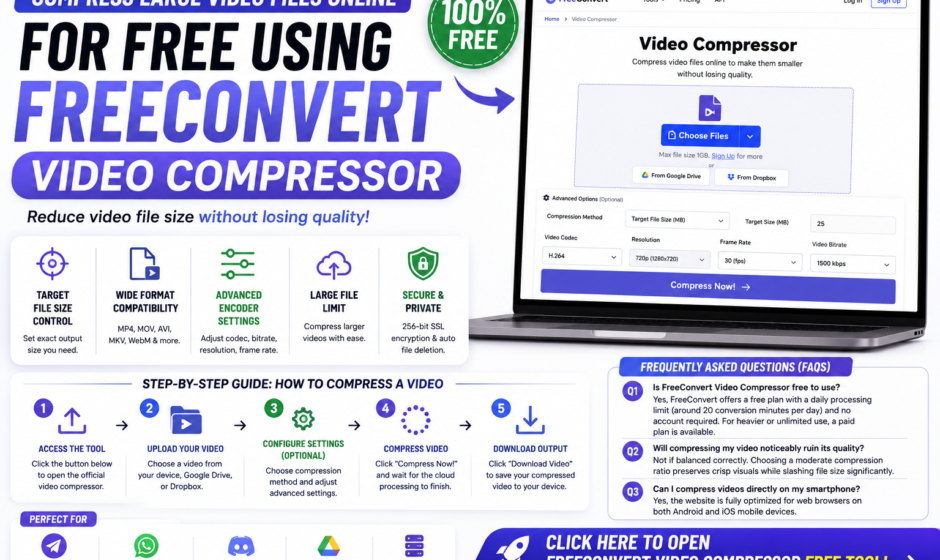
Target File Size Control: Specify an exact target output size (e.g., compress to under 25MB for Discord or email).
Wide Format Compatibility: Supports popular video containers including MP4, MOV, AVI, MKV, and WebM.
Advanced Encoder Settings: Option to adjust video codecs (H.264, H.265), bitrate, frame rate, and resolution.
Large File Limit: Free tier accommodates generous file sizes for quick compression tasks.
Data Security & Privacy: Protected by 256-bit SSL encryption and automatic server file deletion after 2 hours.
Step-by-Step Guide: How to Use FreeConvert Video Compressor
Access the Tool: Click on the “Open Free Tool” button below to launch the video compressor page.
Upload Your Video: Click “Choose Files” to select a video from your computer, phone, Google Drive, or Dropbox.
Configure Settings (Optional): Click the gear icon to choose your compression method (e.g., Target Size or Percentage).
Compress Video: Click the blue “Compress Now!” button to start the cloud processing.
Download Output: Click “Download Video” to save your compressed video file back to your device.
Direct Tool Access
https://www.freeconvert.com/video-compressor
Frequently Asked Questions (FAQs)
Q1: Is FreeConvert Video Compressor free to use?
Answer: Yes, FreeConvert offers a free plan with a daily processing limit (around 20 conversion minutes per day) and no account required. For heavier or unlimited use, a paid plan is available.
Q2: Will compressing my video noticeably ruin its quality?
Answer: Not if balanced correctly. Choosing a moderate compression ratio preserves crisp visuals while slashing file size significantly.
Q3: Can I compress videos directly on my smartphone?
Answer: Yes, the website is fully optimized for web browsers on both Android and iOS mobile devices.
Conclusion
If you need a reliable, customizable way to shrink video sizes for smooth online sharing, email delivery, or saving disk space, FreeConvert Video Compressor is one of the most effective web utilities available.